Google team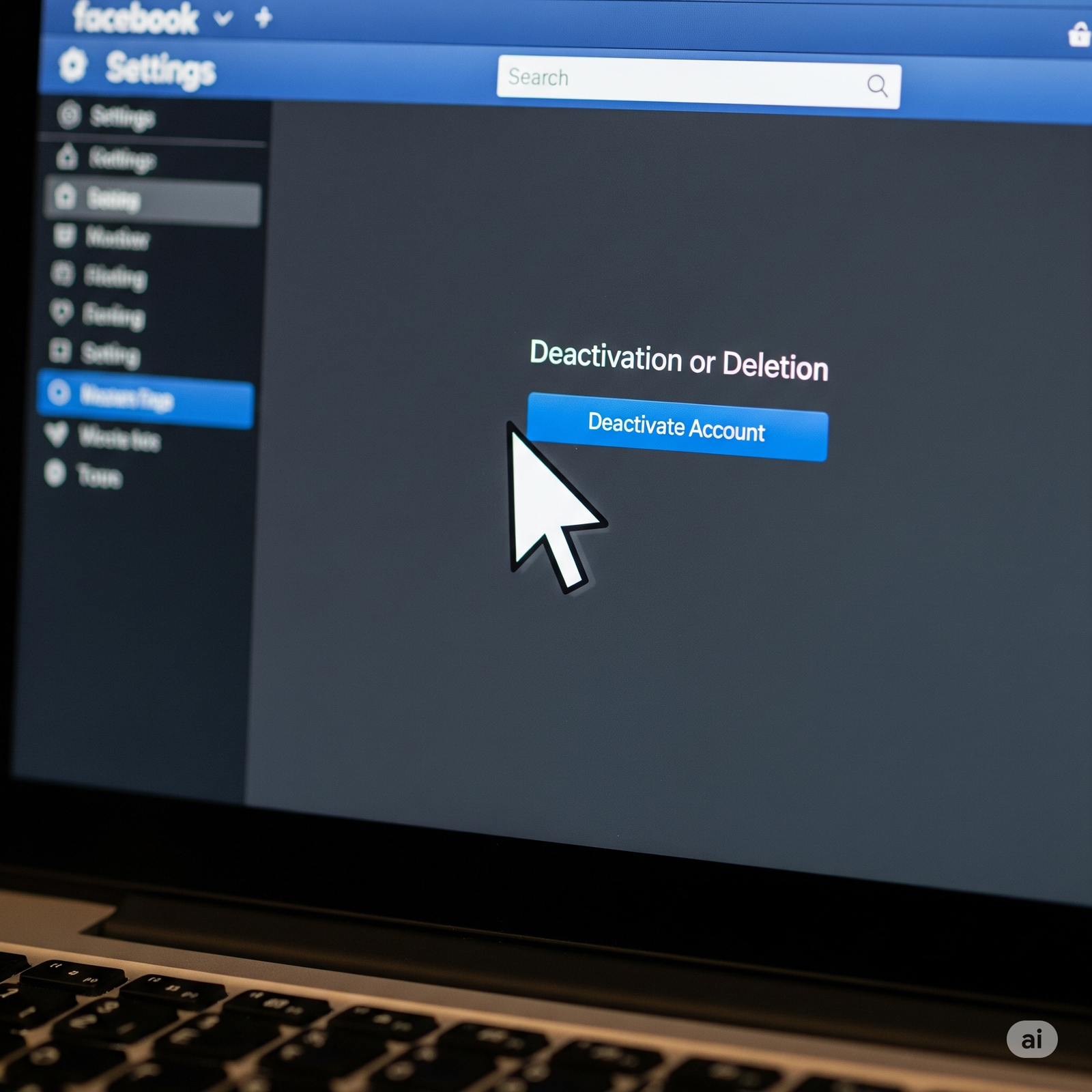
Complete guide to deactivate Facebook account easily.
Facebook is one of the most popular social media platforms in the world, but sometimes users feel the need to take a break. Whether it’s for privacy, productivity, or personal reasons, deactivating your Facebook account is a safe option.
Many people confuse deactivation with deletion. In this guide, we will explain:
-
What happens when you deactivate your account
-
Step-by-step process to deactivate on Mobile app and Desktop
-
How to deactivate Messenger
-
Difference between Deactivate vs Delete Facebook account
-
FAQs
So, let’s dive in! 🚀
What Does Facebook Deactivation Mean?
When you deactivate your Facebook account:
-
Your profile will be hidden from others.
-
Your posts, photos, and comments remain saved but not visible.
-
Friends cannot see or search your profile.
-
Messenger may still work (optional).
-
You can reactivate anytime by simply logging in again.
👉 This is different from Deleting Facebook account, which permanently removes your data.
Step by Step Guide: How to Deactivate Facebook (Mobile)
Here’s how you can deactivate your Facebook account on the Facebook Mobile App (Android & iOS).
Step 1: Open Facebook App
-
Login with your account.
-
Tap on Menu (☰) at the top/bottom right.
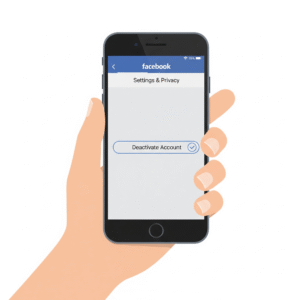
Step 2: Go to Settings & Privacy
-
Scroll down → Settings & Privacy → Settings.
Step 3: Open Accounts Center
-
Under settings, choose Accounts Center.
Step 4: Account Ownership & Control
-
Tap on Personal Details → Account Ownership and Control.
Step 5: Deactivation or Deletion
-
Select Deactivation or deletion.
Step 6: Choose Deactivate Account
-
Select your account → Deactivate Account → Continue.
Step 7: Confirm Deactivation
-
Select reason, set auto reactivation (optional), turn off notifications.
-
Tap Deactivate.
✅ Done! Your Facebook account is now deactivated.
How to Deactivate Facebook on Desktop (Browser)
Follow these steps on facebook.com:
Step 1: Login to Facebook
-
Open browser → login with your account.
Step 2: Go to Settings
-
Click Profile picture ↓ (top-right).
-
Select Settings & Privacy → Settings.
Step 3: Open Accounts Center
-
In the left sidebar, click Accounts Center.
Step 4: Deactivation or Deletion
-
Go to Personal details → Account Ownership and Control → Deactivation or Deletion.
Step 5: Select Deactivate Account
-
Choose account → Deactivate → Continue.
How to Deactivate Messenger
Messenger is often active even after deactivation. If you want to deactivate Messenger too:
-
First, Deactivate Facebook account.
-
Open Messenger App.
-
Tap Profile picture → Legal & Policies → Deactivate Messenger.
-
Confirm with password → Deactivate.
Difference Between Deactivate vs Delete Facebook
| Feature | Deactivate Facebook | Delete Facebook |
|---|---|---|
| Profile | Hidden | Permanently removed |
| Data (photos, posts) | Saved but hidden | Deleted permanently |
| Messenger | Can still use | Deleted |
| Reactivation | Anytime by login | Cannot be undone |
| Time limit | Unlimited | 30 days to cancel deletion |
👉 If you’re not sure, choose Deactivate instead of permanent deletion.
Why People Deactivate Facebook?
-
To focus on studies or work.
-
To take a break from social media.
-
To improve privacy and reduce distractions.
-
To protect account temporarily.
FAQs About Deactivating Facebook
Q1: Can people still see my messages after deactivation?
Yes, messages sent to friends will still be visible.
Q2: How long can I keep my account deactivated?
As long as you want. There’s no time limit.
Q3: Can I still use Messenger?
Yes, unless you also deactivate Messenger.
Q4: Will my pages/groups be deleted?
No, but if you are the only admin, they may become inactive. Assign another admin first.
Q5: Can I reactivate anytime?
Yes, just login with your email/phone + password.
Conclusion
Deactivating Facebook is a great way to take a break without losing your data. Whether you use mobile or desktop, the process is simple and reversible.
If you want to leave Facebook permanently, choose Delete Account instead. But if you’re unsure, Deactivation is the safest option.
👉 Follow the steps above and deactivate your Facebook easily in 2025.




 Nafeesa parveen