 Vishal Ma
Outlook can be customized as a powerful CRM tool for small businesses.
How to Use Outlook as a CRM. When running a small business, managing customer relationships is just as important as finding new leads. While dedicated Customer Relationship Management (CRM) software can be powerful, it’s not always affordable or necessary for small teams. The good news? You can turn Microsoft Outlook into a simple yet effective CRM system without extra cost.
In this step-by-step guide, we’ll show you how to set up Outlook as a CRM, manage contacts, track communication, and improve your sales workflow.
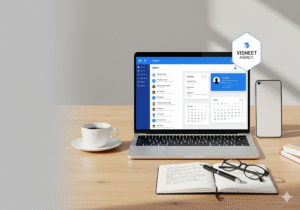
Why Use Outlook as a CRM?- How to Use Outlook as a CRM
Outlook is more than just an email client. With its built-in tools like Contacts, Calendar, Tasks, and Notes, it can be customized into a lightweight CRM. Benefits include:
-
✅ Centralized communication (all emails in one place)
-
✅ Easy contact management
-
✅ Task and reminder scheduling
-
✅ Integration with Microsoft 365 apps
-
✅ Cost-effective alternative to expensive CRM tools
Step 1: Organize Contacts in Outlook- How to Use Outlook as a CRM
-
Open Outlook and go to People (Contacts).
-
Import your existing customer list (CSV or Excel file).
-
Create Contact Groups for leads, prospects, and clients.
-
Add custom fields like company name, deal stage, or notes.
👉 This helps you separate customers based on their sales journey.
Step 2: Track Emails and Communication -How to Use Outlook as a CRM
-
Use Categories to color-code emails (e.g., Red = Hot Lead, Green = Customer).
-
Create Rules to automatically move client emails into folders.
-
Use the Search Folders feature to quickly find communication history.
💡 Pro Tip: Add customer notes in the contact card so you never forget important details.
Step 3: Manage Tasks and Follow-Ups
-
Open the Tasks tab in Outlook.
-
Create tasks for follow-up calls, meetings, or sending proposals.
-
Assign due dates and reminders.
-
Link tasks directly to contacts for easy tracking.
This ensures no lead “falls through the cracks.”
Step 4: Use Calendar for Scheduling
-
Schedule client meetings directly in Outlook Calendar.
-
Use recurring reminders for regular check-ins.
-
Share calendars with your team to align schedules.
Step 5: Use Outlook Add-Ins (Optional)
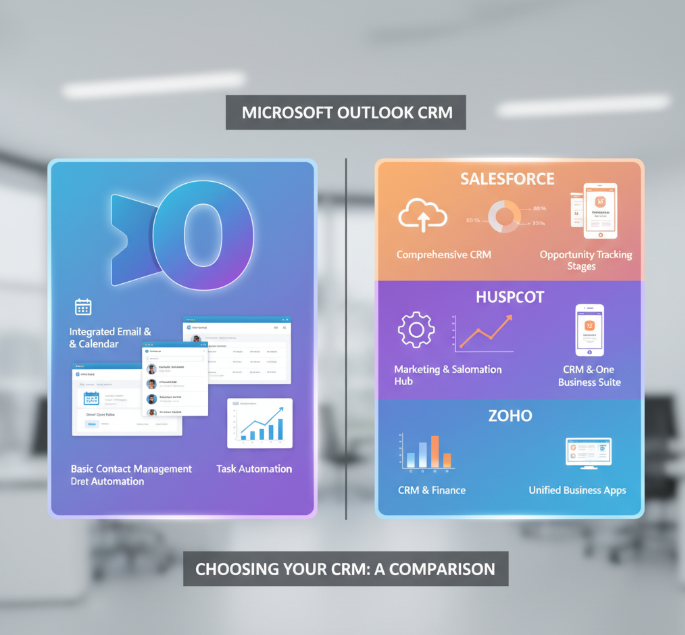
If you want advanced CRM features, Outlook supports add-ins like:
-
Outlook Customer Manager (for Microsoft 365 Business users)
-
Nimble CRM Add-In
-
HubSpot CRM for Outlook
These tools enhance tracking, reporting, and sales pipeline management.
Step 6: Sync Outlook with Mobile Devices
Keep your CRM on-the-go by syncing Outlook with your smartphone. You’ll have instant access to contacts, tasks, and schedules wherever you are.
Best Practices for Using Outlook as a CRM
-
Regularly update contact details.
-
Keep emails organized with folders and categories.
-
Set follow-up reminders after every client call.
-
Export data for backups and reporting.



 Nafeesa parveen
3 thoughts on “How to Use Outlook as a CRM – Best 10”