 Google team
Why your Google Ads campaign is not spending budget and how to fix it.
Introduction
Have you ever set up a Google Ads campaign with a proper daily budget, only to see that Google Ads is not spending your money? 😕 You are not alone. Many advertisers face this issue where their ads get little to no impressions or clicks even though the campaign is active.
If your Google Ads campaign is not spending, it means something is blocking your ads from showing to your target audience. This could be due to wrong targeting, low search volume, disapproved ads, or bidding issues.
In this complete guide, we will cover:
-
The main reasons why your Google Ads budget is not being spent.
-
Step-by-step solutions to fix the problem.
-
Pro tips to optimize your campaigns and avoid future issues.
Let’s dive in! 🚀
Main Reasons Why Google Ads Campaign is Not Spending
If your Google Ads campaign is not spending budget, here are the most common reasons:
1. Low Search Volume Keywords
Google Ads works on user searches. If your chosen keywords have very low search volume, your ads will not trigger. For example, using very niche or uncommon keywords might result in 0 impressions.
🔹 Example: If you target “affordable SEO company in Noida 24×7 fast service,” Google might not have enough search data for that long-tail keyword.
2. Wrong Targeting (Location, Audience, Devices)
If your targeting is too narrow, your ads won’t reach enough people. Common mistakes include:
-
Selecting very small location radius.
-
Adding restricted audience settings.
-
Targeting only desktop or mobile when your audience uses both.
-

Why your Google Ads campaign is not spending budget and how to fix it. 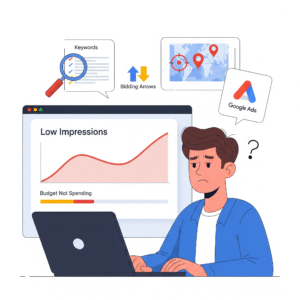
Why your Google Ads campaign is not spending budget and how to fix it.
3. Too Small Daily Budget
Google Ads campaigns need a sufficient daily budget to compete in the ad auction. If your budget is too small compared to the average CPC (Cost Per Click), your ads won’t appear.
🔹 Example: If your CPC is ₹50, but your daily budget is only ₹100, Google might limit your ad visibility.
4. Ad Disapproved or Under Review
If your ad is disapproved due to policy violations or still under review, it will not show.
Common disapproval reasons:
-
Misleading claims
-
Prohibited content (gambling, adult, restricted medicines)
-
Trademark issues
5. Bidding Strategy Issues
Sometimes, the problem lies in your bidding strategy:
-
If you use Manual CPC with very low bids, you might lose auctions.
-
If you select Target CPA or Target ROAS without enough conversion data, Google might limit your ads.
-
Maximize Conversions can also get stuck if the budget is too low.
6. Negative Keywords Blocking Ads
If you add too many negative keywords, you might block your own ad visibility.
7. Ad Scheduling or Paused Campaigns
Sometimes advertisers forget that they’ve:
-
Limited ads to certain days or hours.
-
Accidentally paused ad groups or keywords.
This results in zero ad spend.
Solutions to Fix Google Ads Campaign Not Spending
Now let’s look at step-by-step fixes for each issue.
1. Use High-Volume Keywords
-
Open Google Keyword Planner.
-
Check search volumes for your keywords.
-
Add relevant high-volume keywords that match your business.
✅ Example: Instead of “affordable SEO service for IT startups in Delhi,” use “SEO services in Delhi.”
2. Adjust Targeting Settings
-
Widen your location targeting (instead of 2km radius, target entire city/state).
-
Allow ads to run on all devices.
-
Remove overly restrictive audience filters.
3. Increase Daily Budget
-
Calculate your average CPC.
-
Set a daily budget that allows at least 20–30 clicks/day.
-
Example: If CPC is ₹20, set a budget of ₹500–600/day minimum.
4. Check Ad Status
-
Go to the Ads & Extensions tab.
-
If disapproved, click “Why disapproved?” and fix the policy violation.
-
If under review, wait 24–48 hours.
5. Change Bidding Strategy
-
If you are on Target CPA/ROAS, switch to Maximize Clicks or Manual CPC temporarily.
-
Increase your bid to match competitors.
-
Monitor performance for 7–10 days.
6. Review Negative Keywords
-
Check if your negative keywords are blocking traffic.
-
Remove unnecessary ones.
7. Fix Ad Scheduling
-
Ensure ads are set to run 24/7 (at least in the beginning).
-
Double-check if campaigns, ad groups, or keywords are not paused.
Pro Tips to Get Better Results
Once your ads start spending, you must optimize them for better ROI.
✅ Use Negative Keywords Wisely
Block irrelevant traffic to save money. Example: If you sell premium products, exclude terms like “free” or “cheap.”
✅ Improve Ad Quality Score
Google rewards ads with higher Quality Score by giving more impressions at lower CPC.
-
Write relevant ad copy.
-
Use ad extensions (sitelinks, callouts).
-
Improve landing page experience.
✅ Test Multiple Ad Copies
Run at least 3-4 ad variations per ad group. Google will auto-optimize and show the best-performing ad.
✅ Monitor Search Terms Report
Regularly check which searches triggered your ads and adjust keywords accordingly.
Conclusion
If your Google Ads campaign is not spending budget, don’t panic! Most of the time, the problem is related to keywords, targeting, bidding, or budget size.
To fix it:
-
Use high-volume keywords.
-
Adjust targeting and increase budget.
-
Fix disapproved ads and optimize bidding strategy.
By following these solutions and pro tips, you can ensure that your Google Ads campaigns spend properly and deliver results. 🚀
👉 Still facing issues with your campaign? Drop a comment below or contact us for expert help in fixing your Google Ads performance.



 Nafeesa parveen


1 thought on “Why My Google Ads Campaign is Not Spending Budget?”